
Multistream webinars without a separate clipping stack
Marketing and enablement teams should not need one vendor for simulcast and another for Shorts. ClipBot records the OBS show, surfaces highlight suggestions and keeps approvals in the same workspace your producer already uses on event day.
Plan what your audience should see next
Pick one takeaway per clip. Give viewers who missed the event enough context, and check speaker and client approvals before sharing publicly.
FAQ
- Can we multistream a webinar?
- Yes. Select the public destinations your event needs and send one OBS encode through ClipBot.
- How do we create follow-up clips?
- Open the cloud recording after the event, preview 9:16 answers or demos and approve before publishing.
Multistream webinars, demos and product launches
Set up a primary event page
Choose a single page for registration or the full replay and share that URL in event announcements. Decide which public channels will show the event, and assign someone to verify that sound, slides and links look right on each output.
Rehearse for the replay
Test microphones, desktop capture and slides at the same resolution you will use live. Use a dedicated OBS scene for transitions. Close private tabs and turn off desktop notifications before you share your screen.
Create clips that answer buying questions
Look for a feature demonstration, a customer question or a useful explanation of the problem. Make each clip self-contained and use a clear next step, such as watching the full webinar or visiting the product page.
Share material your team has approved
Check speaker consent, wording and launch dates before sharing. See how viewers found the replay by tracking links separately for email and social.
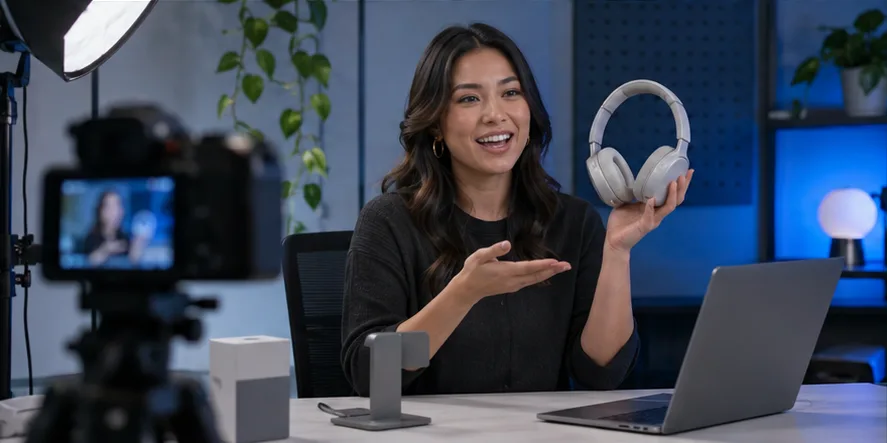
Live streaming for business webinars and launches
Business broadcasts need clear audio, slide legibility, and compliant clips for sales follow-up. Multistream to the primary registration page plus social simulcasts, record the full program, and excerpt answers to buying questions without rebuilding the edit in a separate tool.
Related: Multistreaming · AI Clips · Stream on Loop