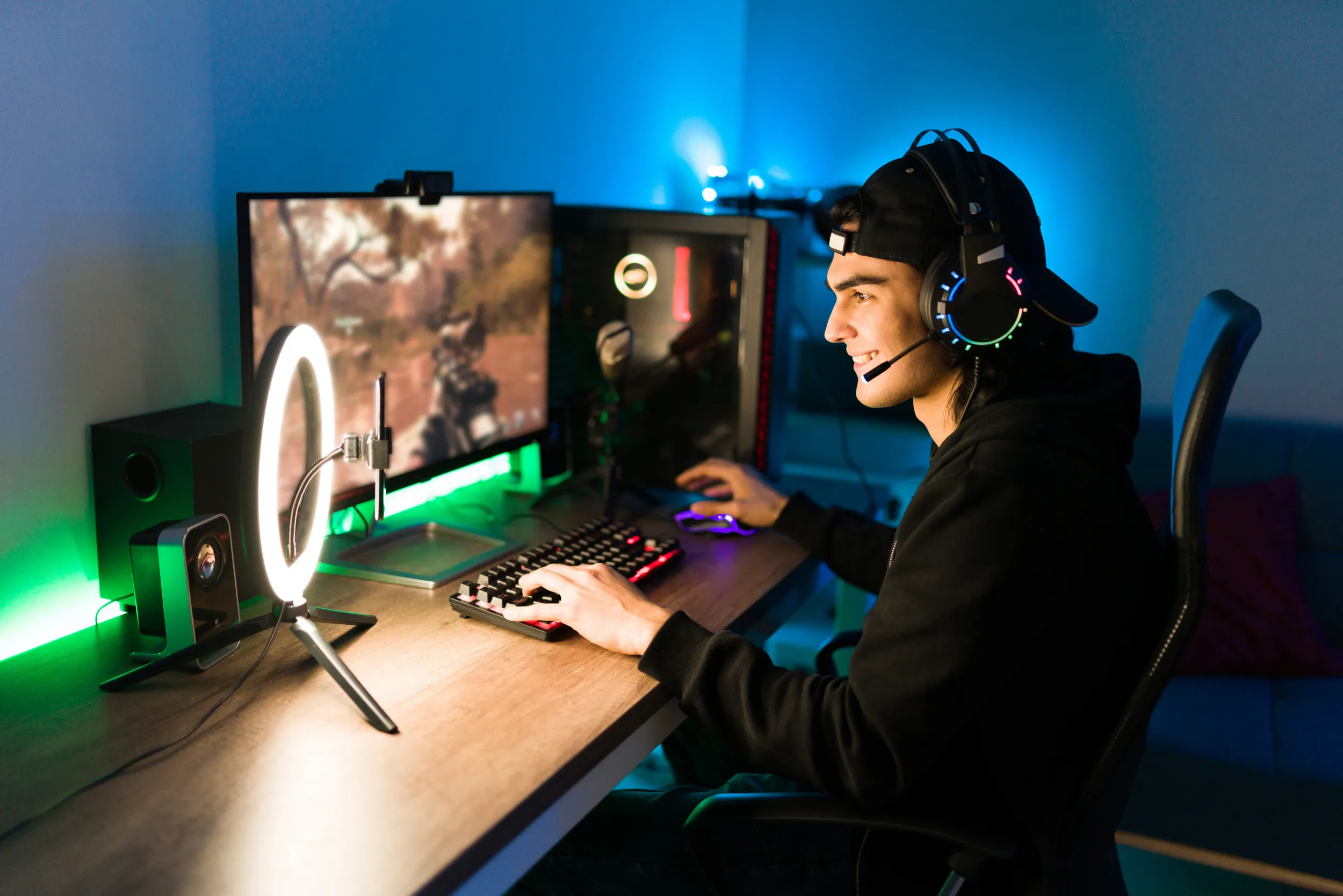
Multistream gaming and highlight clips in one workspace
ClipBot is built for streamers who already produce in OBS and want to reach Kick, Loop, Twitch and YouTube without juggling separate restream and clipping subscriptions. Cloud recording keeps the same file that powers AI clip review, so you are not re-uploading match VOD before cutting Shorts.
From the lobby to the highlight reel
Go live to your connected destinations. After the match, scrub the replay and choose a clip with the setup, turning point and reaction. Watch the 9:16 preview so viewers can follow the play on a phone.
Benefits for your workflow
Stream to Kick, Loop and social at once
Fan out one encode to up to eight destinations on Starter and Pro, including custom RTMP when you need a staging feed.
Clip from the cloud replay
Recording runs in parallel with distribution, so highlights can be queued from the same session you just finished.
Review before Auto Share
Captions and destinations are confirmed in the dashboard before Shorts or TikTok posts are approved.
How to get started
- Connect OBS to ClipBot and select gaming destinations for this session.
- Run a short test to verify audio, HUD visibility and simulcast rules on each platform.
- After a strong round, open the clip queue and preview vertical framing with captions.
- Approve the clip and point viewers to your next live schedule in the post text.
FAQ
- Can I multistream to Twitch and YouTube at the same time?
- Yes on Starter and Pro. Select the destinations you need for each session and send one OBS encode through ClipBot.
- How does ClipBot pick gaming highlights?
- Signals from audio peaks, motion and your cloud replay surface candidate moments with a viral score. You approve before anything posts.
- Can I use my existing OBS scenes?
- Keep your layouts and point OBS at ClipBot ingest. No extra plugin is required for distribution or recording.
- Does ClipBot watermark clips on Free?
- Free includes watermarked clips with a monthly cap. Starter and Pro remove the watermark and raise clip limits.
OBS multistreaming and AI gaming highlights
Keep the stream easy to watch
Build a gameplay scene with clear team audio and a face cam that leaves the HUD visible. Test your selected platforms before you queue, and check the stream from a viewer account. Account rules can affect where you are allowed to simulcast.
Mark clips with a story
A comeback works best when people can see the disadvantage, the turning point and the reaction. Flag clutch timing during a break. In the replay, give viewers just enough setup to understand the round without waiting for every previous play.
Make gameplay legible on a phone
Preview the 9:16 framing and make sure the reticle, score or objective stays in view. Watch for party-chat names and notifications in the crop. Read the captions once with sound off before approving the clip.
Bring viewers back to the stream
Mention the game, map or challenge in the post. Link the full replay or next live show where the destination allows it, so a highlight has somewhere to send new viewers.
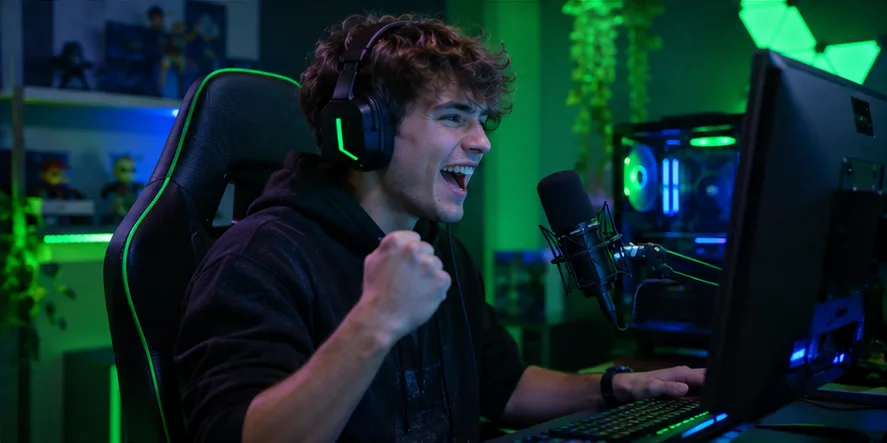
Stream to Twitch, YouTube, and Kick at once
Gamers need low-friction simulcasting and clips that show the round, the reaction, and the chat spike. ClipBot keeps HUDs readable in 9:16, lets you reject noisy suggestions, and links Shorts back to the next live show when the destination allows it.
Related: Multistreaming · AI Clips · Stream on Loop